> ## Documentation Index
> Fetch the complete documentation index at: https://docs.clairelabs.ai/llms.txt
> Use this file to discover all available pages before exploring further.
# AI agents
> Build custom AI agents to conduct interactive interviews and assessments.
Claire's audio-native AI agents can maintain low-latency conversations and conduct entire interviews on behalf of educators. They can be used to add a conversational layer to new or existing coursework without sacrificing human oversight.
 ## How to build AI agents
Building an agent is straightforward and only requires a few lines of text. Our platform translates your instructions into an exhaustive playbook that you can review before sharing the agent with students.
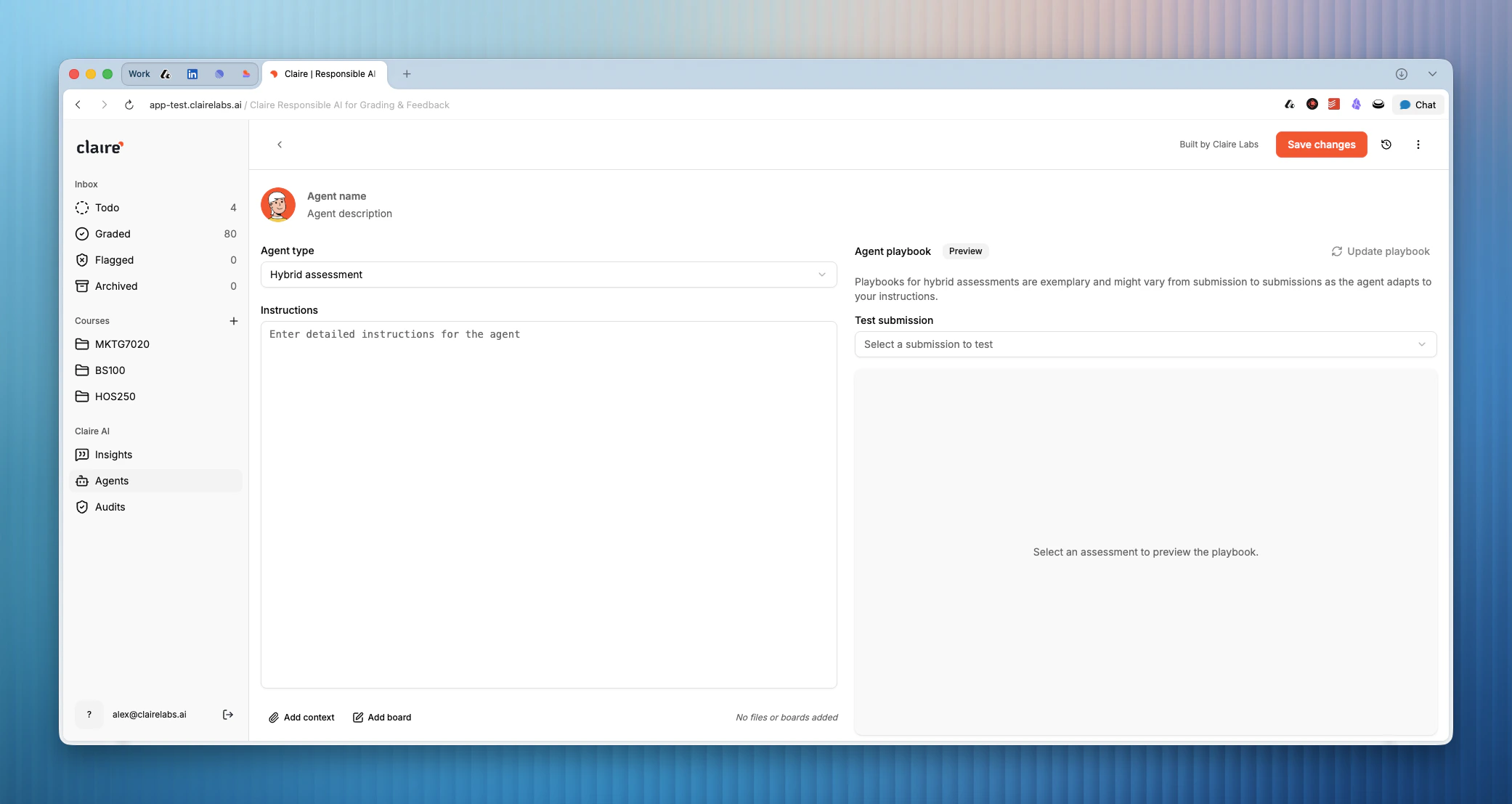
Head to the Agents section on the platform. Here, you can view existing agents or create new ones.
* Click Create to start setting up a new agent.
* Give the agent a name and a short description (for internal organization).
* Decide whether you'd like to use your agent in an **Oral** (agent-led interview) or **Hybrid** (written submission followed by an interview) assessment.
* Add instructions that guide the agent and explain its role and objective.
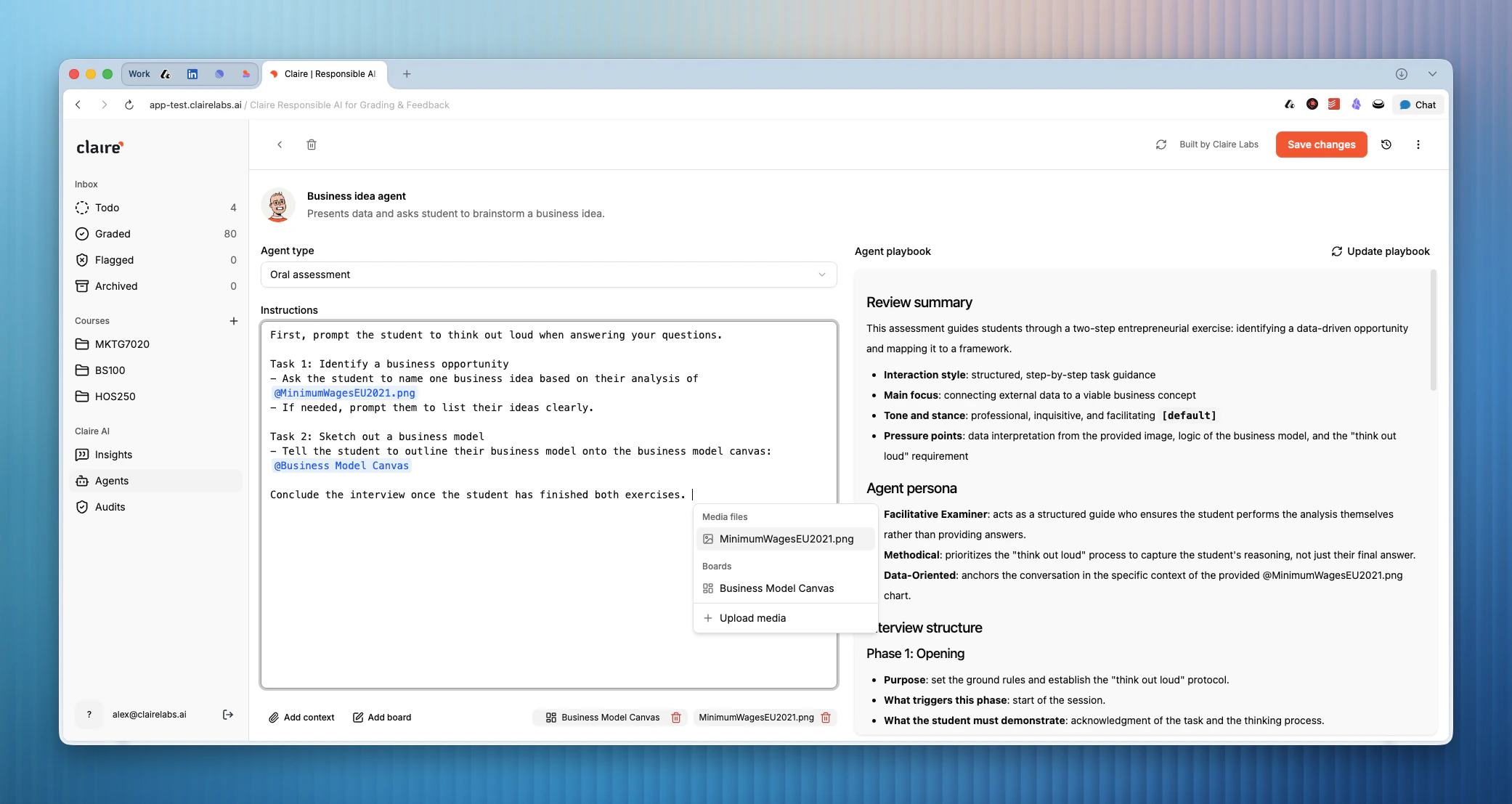
Agents are highly capable and can call tools during the interview. Click Add context to attach media files or Add board to add a whiteboard (empty or with a drawn template). You can then mention the tools in your instructions by typing @ and selecting the item.
Click Update playbook to create detailed instructions that will be shared with the agent. This gives the agent detailed instructions on how to behave and conduct the interview, and makes it easy for you to review the interview script and guardrails.
Click Save changes to save your agent.
### Example instructions
Here's an example of an agent used for a business ideation assignment. It consists of only a few lines of instructions:
```text theme={null}
First, prompt the student to think out loud when answering your questions.
Task 1 - Identify business opportunities
- Ask the student to name 1 business idea based on their analysis of {Slide}
- If needed, prompt them to list their ideas clearly.
Task 2 - Sketch out a business model
- Tell the student to pick one of the ideas they came up with
- Then ask them to outline their business model onto the canvas: {Whiteboard}
Conclude the interview once the student has finished both exercises.
```
## Agent context and tools
Agents are extremely capable and can call tools during the interview with a student. Tools enable you to bring different media (images, lecture slides, etc.) or an interactive whiteboard into the conversation, requiring the student to demonstrate cognitive skills in real time.
To add tools to your agent:
1. Click Add context to attach media files, or Add board to add a whiteboard (empty or with a drawn template).
2. Once added, you can simply mention the tool in the agent's instructions by typing @ and selecting the item.
## How to build AI agents
Building an agent is straightforward and only requires a few lines of text. Our platform translates your instructions into an exhaustive playbook that you can review before sharing the agent with students.
Head to the Agents section on the platform. Here, you can view existing agents or create new ones.
* Click Create to start setting up a new agent.
* Give the agent a name and a short description (for internal organization).
* Decide whether you'd like to use your agent in an **Oral** (agent-led interview) or **Hybrid** (written submission followed by an interview) assessment.
* Add instructions that guide the agent and explain its role and objective.
Agents are highly capable and can call tools during the interview. Click Add context to attach media files or Add board to add a whiteboard (empty or with a drawn template). You can then mention the tools in your instructions by typing @ and selecting the item.
Click Update playbook to create detailed instructions that will be shared with the agent. This gives the agent detailed instructions on how to behave and conduct the interview, and makes it easy for you to review the interview script and guardrails.
Click Save changes to save your agent.
### Example instructions
Here's an example of an agent used for a business ideation assignment. It consists of only a few lines of instructions:
```text theme={null}
First, prompt the student to think out loud when answering your questions.
Task 1 - Identify business opportunities
- Ask the student to name 1 business idea based on their analysis of {Slide}
- If needed, prompt them to list their ideas clearly.
Task 2 - Sketch out a business model
- Tell the student to pick one of the ideas they came up with
- Then ask them to outline their business model onto the canvas: {Whiteboard}
Conclude the interview once the student has finished both exercises.
```
## Agent context and tools
Agents are extremely capable and can call tools during the interview with a student. Tools enable you to bring different media (images, lecture slides, etc.) or an interactive whiteboard into the conversation, requiring the student to demonstrate cognitive skills in real time.
To add tools to your agent:
1. Click Add context to attach media files, or Add board to add a whiteboard (empty or with a drawn template).
2. Once added, you can simply mention the tool in the agent's instructions by typing @ and selecting the item.
 ## Keyboard shortcuts
| Key | Action |
| ------------ | ----------------------------------------------- |
| @ | Mention a tool while writing agent instructions |
**Looking for more details?**
* To create assessments that leverage your new AI agent, see [Assessments](/documentation/course/assessments).
* To see what an AI agent interview looks like from the student's perspective, see [Student portal](/documentation/course/student-portal).
## Keyboard shortcuts
| Key | Action |
| ------------ | ----------------------------------------------- |
| @ | Mention a tool while writing agent instructions |
**Looking for more details?**
* To create assessments that leverage your new AI agent, see [Assessments](/documentation/course/assessments).
* To see what an AI agent interview looks like from the student's perspective, see [Student portal](/documentation/course/student-portal).