> ## Documentation Index
> Fetch the complete documentation index at: https://docs.clairelabs.ai/llms.txt
> Use this file to discover all available pages before exploring further.
# Assessments
> Create and manage written, oral and hybrid assessments using AI agents.
Claire allows you to easily create assessments that leverage agentic, conversational learning experiences. Assessments can be embedded into daily course work, tailored learning scenarios, or used as formal grading tools.
We use the term "assessment" rather broadly. You can use Claire for graded assessments, take-home assignments, casual and informal exercises, and role-plays or simulations.
## Assessment types
Our platform supports three different types of assessments:
### Written learning scenarios
Students submit written work without an interactive AI interview.
* Ideal for traditional assignments where AI can still be used for providing immediate feedback based on your rubric.
### Oral learning scenarios
Students speak with the agent directly, without submitting work beforehand.
* The interaction follows a custom interview playbook defined by the educator.
* Agents can call tools such as images, lecture slides, and whiteboards during the interview.
* Best suited for reflection exercises, knowledge and comprehension checks, role-play, and simulations.
### Hybrid learning scenarios
Students first submit written work, then continue into an interview with the agent.
* The interview still follows the educator's playbook, but can adapt dynamically to the student's submission.
* Agents can call tools such as images, lecture slides, and whiteboards during the interview.
* Best suited for assessing how much agency, understanding, and ownership a student has over submitted work.
## Creating an assessment
To create an assessment:
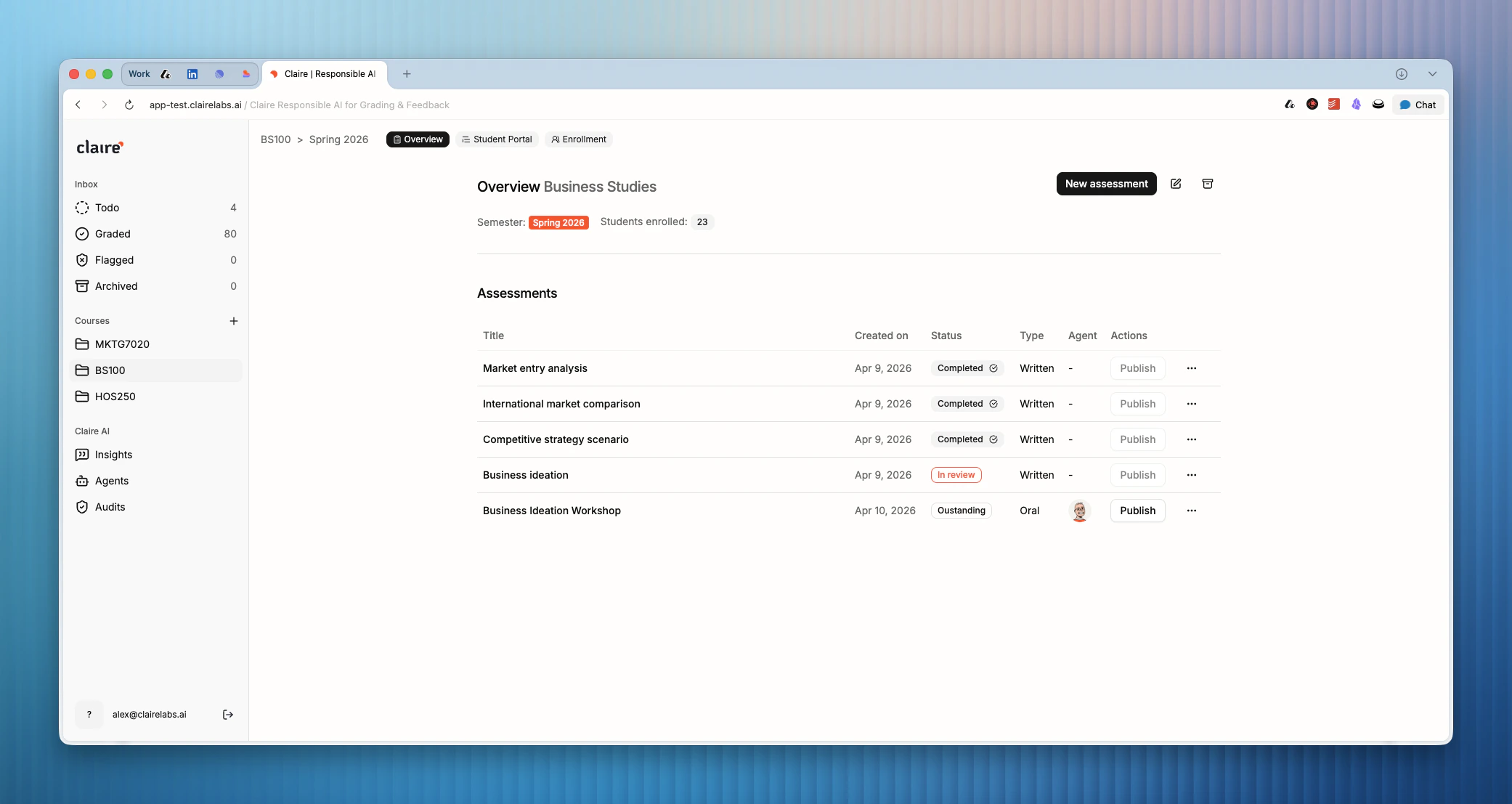
1. Select a course from the sidebar (or click to create a new one). Within the course view, click New assessment.
2. Give the assessment a title and select the type (Written, Oral, or Hybrid).
3. Select your agent from the list of available agents and click Continue.
4. Upload the **Instructions** that you'll share with your students.
5. Upload a **Grading rubric**. A rubric is mandatory regardless of whether you're planning on grading the assessment, as it will be used to provide students with immediate AI feedback.
Once created, the assessment will appear in your Assessments table.
 ## Publishing assessments
To publish an assessment:
1. Click the Publish button next to the assessment in the table.
2. In the dialog, set a **start date** and a **deadline**.
3. **Enable AI feedback** if you want students to access an AI-generated feedback report right after they submit their work or conclude the interview. For compliance reasons, if you want your assessment to be graded, you cannot use AI to give feedback.
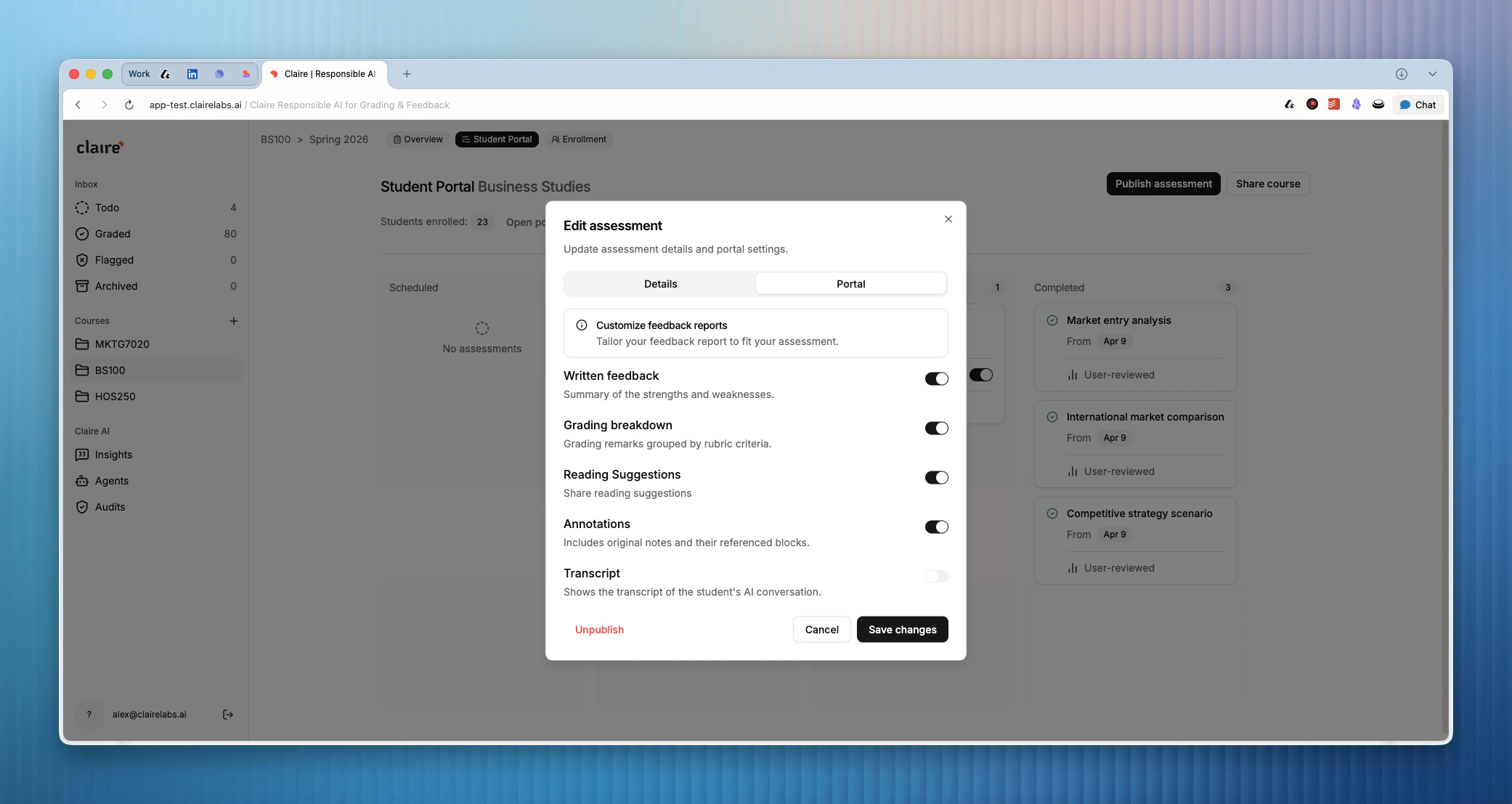
4. Customize the feedback report in the Portal tab. This format will be used for both human and AI feedback.
## Publishing assessments
To publish an assessment:
1. Click the Publish button next to the assessment in the table.
2. In the dialog, set a **start date** and a **deadline**.
3. **Enable AI feedback** if you want students to access an AI-generated feedback report right after they submit their work or conclude the interview. For compliance reasons, if you want your assessment to be graded, you cannot use AI to give feedback.
4. Customize the feedback report in the Portal tab. This format will be used for both human and AI feedback.
 ***
**Looking for more details?**
* To learn how students access and view assessments, see [Student portal](/documentation/course/student-portal).
* To learn how to build AI agents for your oral and hybrid assessments, see [AI agents](/documentation/claire-ai/agents).
***
**Looking for more details?**
* To learn how students access and view assessments, see [Student portal](/documentation/course/student-portal).
* To learn how to build AI agents for your oral and hybrid assessments, see [AI agents](/documentation/claire-ai/agents).