> ## Documentation Index
> Fetch the complete documentation index at: https://docs.clairelabs.ai/llms.txt
> Use this file to discover all available pages before exploring further.
# Manage and track submissions
> The inbox is your central hub in Claire. See all student submissions at a glance, track their status, upload files manually, and manage flags and archives.
When you sign into Claire, the inbox is the first thing you see.
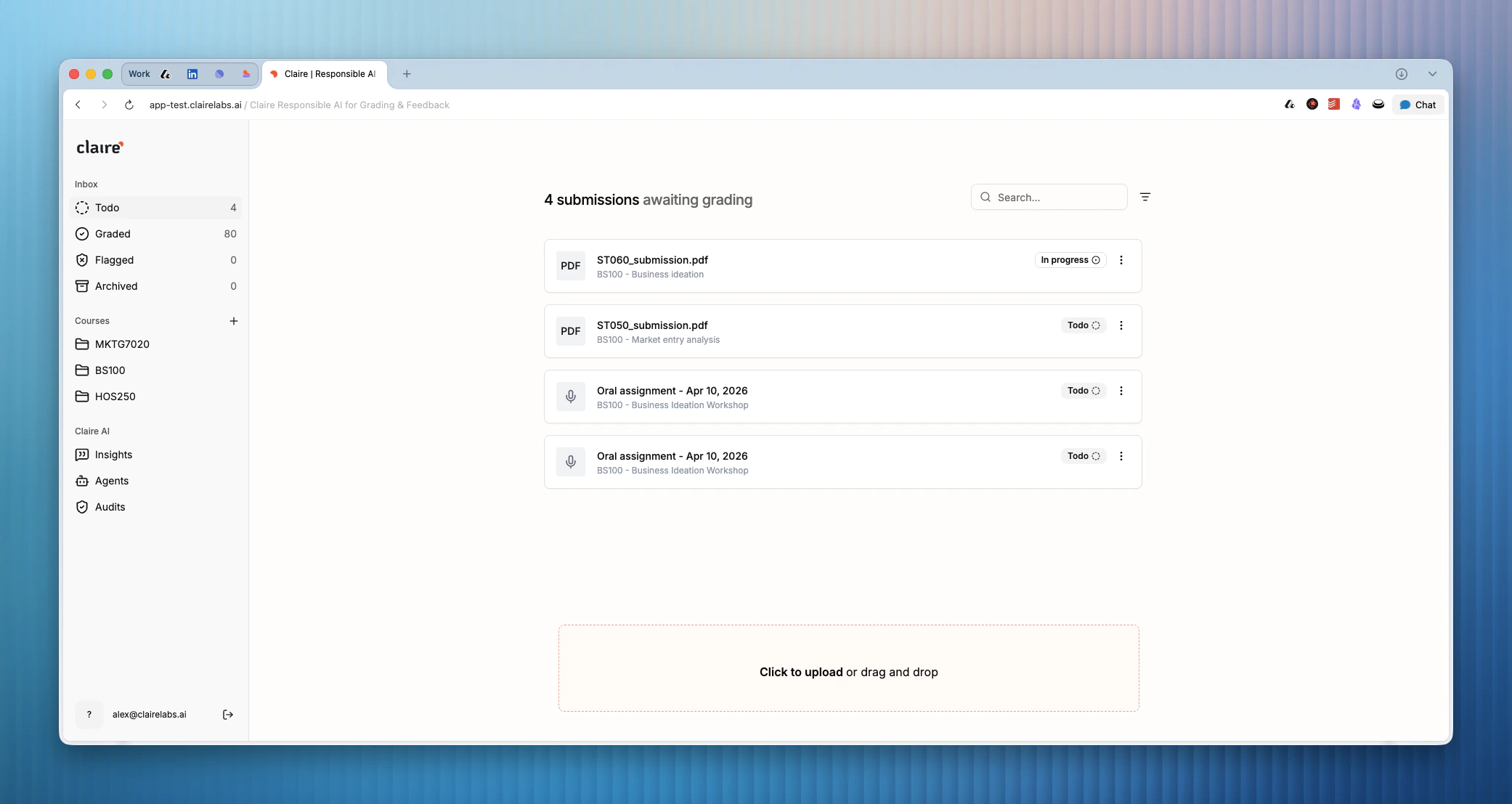 It gives you a bird's eye view of student submissions in your course — what still needs grading, what's been shared with students, what requires follow-up, and what you've put away.
You will only see student submissions that do not have AI feedback enabled. Submissions that receive AI instant feedback are handled automatically and will not appear in your inbox.
## Submission statuses
Submissions from the Student Portal that are due for review will automatically appear in your Inbox. You can open and view a submission by clicking on the respective submission item. This will open the submission (written work, transcript, or both) in the [Reader](/documentation/reader/annotate).
**Todo** submissions are waiting for your review. A submission enters this status as soon as you upload it or receive it via the portal. Work through your Todo list to keep grading on track.
**Graded** submissions have been reviewed and their feedback has been published to the student. A submission moves to Graded automatically — you cannot set this status manually.
**Flagged** submissions require further attention or follow-up. Flag a submission by clicking the dots icon next to it and selecting Flag submission from the dropdown. Use this for cases that need escalation or further investigation such as policy breaches etc..
**Archived** submissions have been put away and are no longer active. Use archiving to keep your inbox focused on current work without permanently removing submissions.
You are also able to pull submissions into your inbox via the [Insights](/documentation/claire-ai/insights) engine. By querying and conversationally asking for specific submissions, they will appear in the Insights section in a table. There's a button that says "Flag", and once you flag a submission, it will show up in your inbox.
## Upload submissions manually
To add submissions to your inbox, upload them directly from your device. Currently, we only accept PDF files. Claire extracts the student ID from each file name automatically, making batch uploads straightforward.
It is important to include the student ID in the file title before uploading.
Claire recognizes several common formats:
| Format | Example |
| -------------------- | ---------------------------- |
| ID at the start | `14972844 My Assignment.PDF` |
| ID in parentheses | `My Exam (ID 12345678).PDF` |
| ID followed by title | `12345678 Title of Exam` |
We also support automated submission syncing by integrating directly with LMS providers via LTI. For more information, please see the [LTI support and LMS integration](/reference/lti-support) page.
***
**Looking for more details?**
* To learn how to manually review student submissions, explore the [Reading view](/documentation/reader/annotate).
It gives you a bird's eye view of student submissions in your course — what still needs grading, what's been shared with students, what requires follow-up, and what you've put away.
You will only see student submissions that do not have AI feedback enabled. Submissions that receive AI instant feedback are handled automatically and will not appear in your inbox.
## Submission statuses
Submissions from the Student Portal that are due for review will automatically appear in your Inbox. You can open and view a submission by clicking on the respective submission item. This will open the submission (written work, transcript, or both) in the [Reader](/documentation/reader/annotate).
**Todo** submissions are waiting for your review. A submission enters this status as soon as you upload it or receive it via the portal. Work through your Todo list to keep grading on track.
**Graded** submissions have been reviewed and their feedback has been published to the student. A submission moves to Graded automatically — you cannot set this status manually.
**Flagged** submissions require further attention or follow-up. Flag a submission by clicking the dots icon next to it and selecting Flag submission from the dropdown. Use this for cases that need escalation or further investigation such as policy breaches etc..
**Archived** submissions have been put away and are no longer active. Use archiving to keep your inbox focused on current work without permanently removing submissions.
You are also able to pull submissions into your inbox via the [Insights](/documentation/claire-ai/insights) engine. By querying and conversationally asking for specific submissions, they will appear in the Insights section in a table. There's a button that says "Flag", and once you flag a submission, it will show up in your inbox.
## Upload submissions manually
To add submissions to your inbox, upload them directly from your device. Currently, we only accept PDF files. Claire extracts the student ID from each file name automatically, making batch uploads straightforward.
It is important to include the student ID in the file title before uploading.
Claire recognizes several common formats:
| Format | Example |
| -------------------- | ---------------------------- |
| ID at the start | `14972844 My Assignment.PDF` |
| ID in parentheses | `My Exam (ID 12345678).PDF` |
| ID followed by title | `12345678 Title of Exam` |
We also support automated submission syncing by integrating directly with LMS providers via LTI. For more information, please see the [LTI support and LMS integration](/reference/lti-support) page.
***
**Looking for more details?**
* To learn how to manually review student submissions, explore the [Reading view](/documentation/reader/annotate).