> ## Documentation Index
> Fetch the complete documentation index at: https://docs.clairelabs.ai/llms.txt
> Use this file to discover all available pages before exploring further.
# Review submissions
> Claire transforms your raw notes into personalized, well-written student feedback. Learn how to generate, review, and publish a feedback report.
One of the biggest benefits of using Claire is being able to turn your raw annotation notes into marking guidelines and polished, personalized feedback without adding to your workload.
In [Reading view](https://clairelabs.mintlify.app/documentation/reader/annotate) or [Rubric view](https://clairelabs.mintlify.app/documentation/reader/rubric-view), click Generate report. Claire synthesizes all your notes — both comments and grading remarks, including their sentiments — and prepares your marking and feedback draft for you.
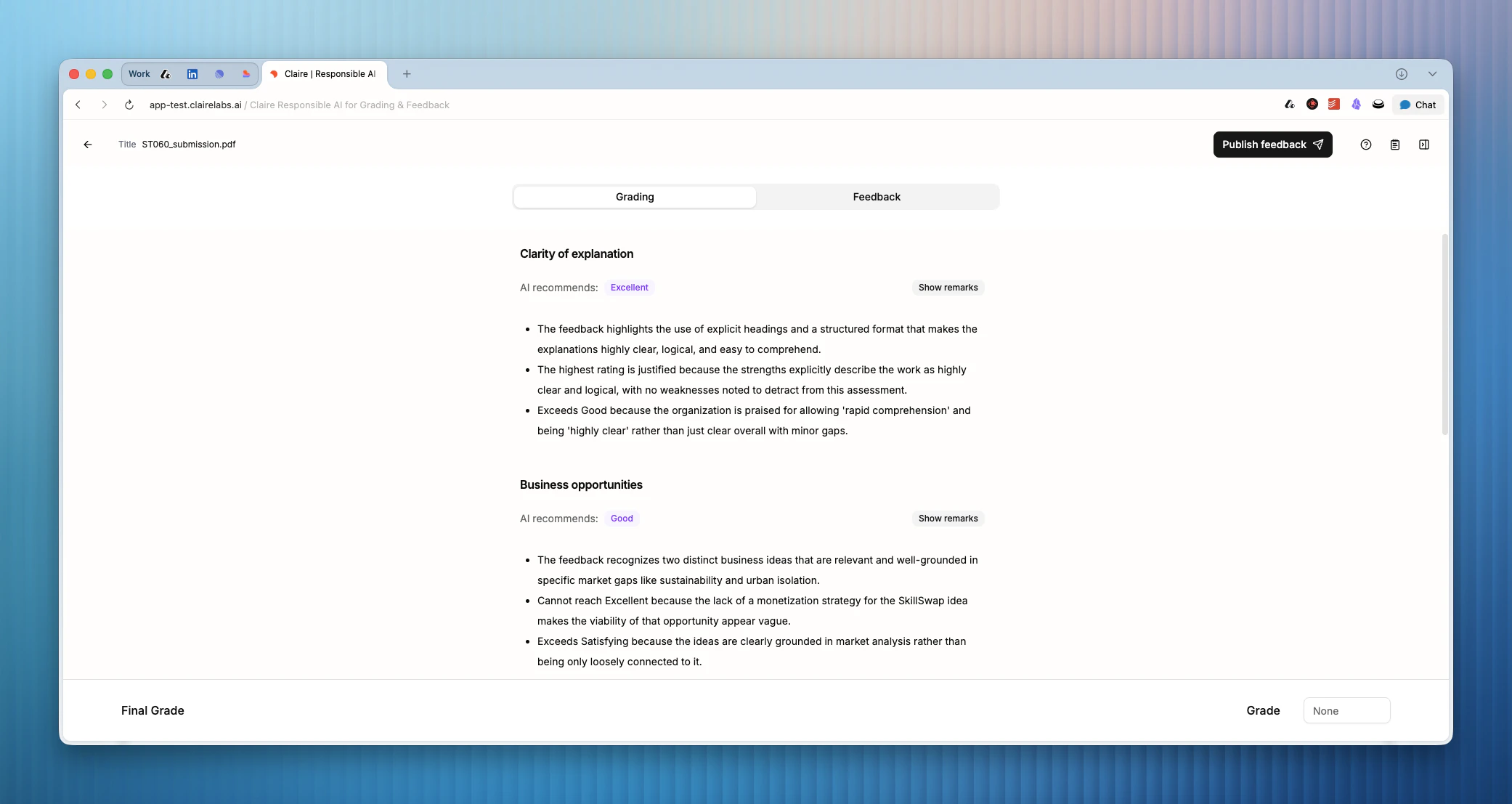 ## Determine the final grade with marking guidelines
When you generate a report, the system maps your grading remarks against the scoring criteria of your grading rubric to determine the most appropriate bucket. The outcome will be presented to you as a recommendation.
AI can make mistakes. Do not take the recommendation at face value. We encourage you to treat AI output critically, and verify the underlying grading remarks. You can do so by clicking View Blocks.
Once you've completed your review, add the final grade in the input field at the bottom.
## Generate, review, and share feedback
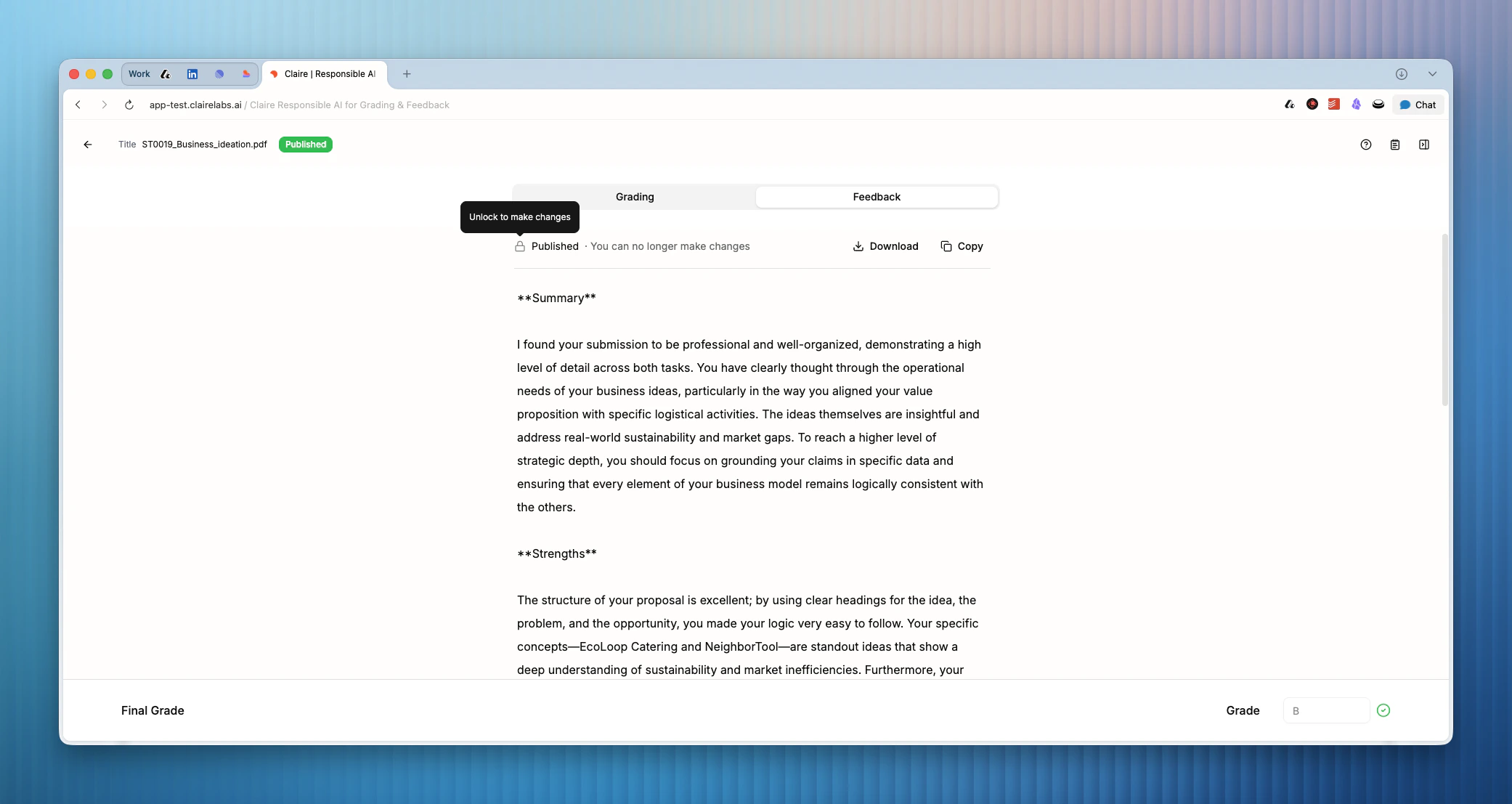
Click Feedback in the tab menu to see the generated draft. Read through the text and confirm it accurately reflects your intended feedback.
Click anywhere in the feedback text to place your cursor and type. Make any adjustments you need. The text editor supports standard text editing.
The current text editor is basic. It supports standard text editing — typing, selecting, and deleting — but does not yet support rich formatting such as bold, bullet lists, or headings.
When you are satisfied with the text, click Publish feedback in the navigation bar. This stages the feedback and locks it in. From here, you have two options to share the feedback with your student:
1. **Download as PDF:** You can download the report as a PDF to share manually.
2. **Publish to the student portal:** You can make the feedback available directly in the student portal.
If you really needed to make a change to feedback after it is already published, click the icon to unlock it and make your change.
## Determine the final grade with marking guidelines
When you generate a report, the system maps your grading remarks against the scoring criteria of your grading rubric to determine the most appropriate bucket. The outcome will be presented to you as a recommendation.
AI can make mistakes. Do not take the recommendation at face value. We encourage you to treat AI output critically, and verify the underlying grading remarks. You can do so by clicking View Blocks.
Once you've completed your review, add the final grade in the input field at the bottom.
## Generate, review, and share feedback
Click Feedback in the tab menu to see the generated draft. Read through the text and confirm it accurately reflects your intended feedback.
Click anywhere in the feedback text to place your cursor and type. Make any adjustments you need. The text editor supports standard text editing.
The current text editor is basic. It supports standard text editing — typing, selecting, and deleting — but does not yet support rich formatting such as bold, bullet lists, or headings.
When you are satisfied with the text, click Publish feedback in the navigation bar. This stages the feedback and locks it in. From here, you have two options to share the feedback with your student:
1. **Download as PDF:** You can download the report as a PDF to share manually.
2. **Publish to the student portal:** You can make the feedback available directly in the student portal.
If you really needed to make a change to feedback after it is already published, click the icon to unlock it and make your change.
 To publish the feedback to the student portal, navigate back to the **Student Portal** tab on your course page.
* **In Review:** When an assessment is in the "In Review" column, you can use the Share grades in portal toggle. When turned **on**, any feedback you publish is immediately visible to the student in the portal. When turned **off**, feedback remains staged until you are ready, ensuring all students receive their feedback at the same time.
* **Completed:** When you move the assessment to the "Completed" column, all published feedback and grades will be visible to students in the portal.
***
**Looking for more details?**
* To see what the report looks like for your student, see [Feedback reports](/grading/student-feedback-reports).
* To understand how to manage your assessments and portal, see [Student portal](/documentation/course/student-portal).
To publish the feedback to the student portal, navigate back to the **Student Portal** tab on your course page.
* **In Review:** When an assessment is in the "In Review" column, you can use the Share grades in portal toggle. When turned **on**, any feedback you publish is immediately visible to the student in the portal. When turned **off**, feedback remains staged until you are ready, ensuring all students receive their feedback at the same time.
* **Completed:** When you move the assessment to the "Completed" column, all published feedback and grades will be visible to students in the portal.
***
**Looking for more details?**
* To see what the report looks like for your student, see [Feedback reports](/grading/student-feedback-reports).
* To understand how to manage your assessments and portal, see [Student portal](/documentation/course/student-portal).