

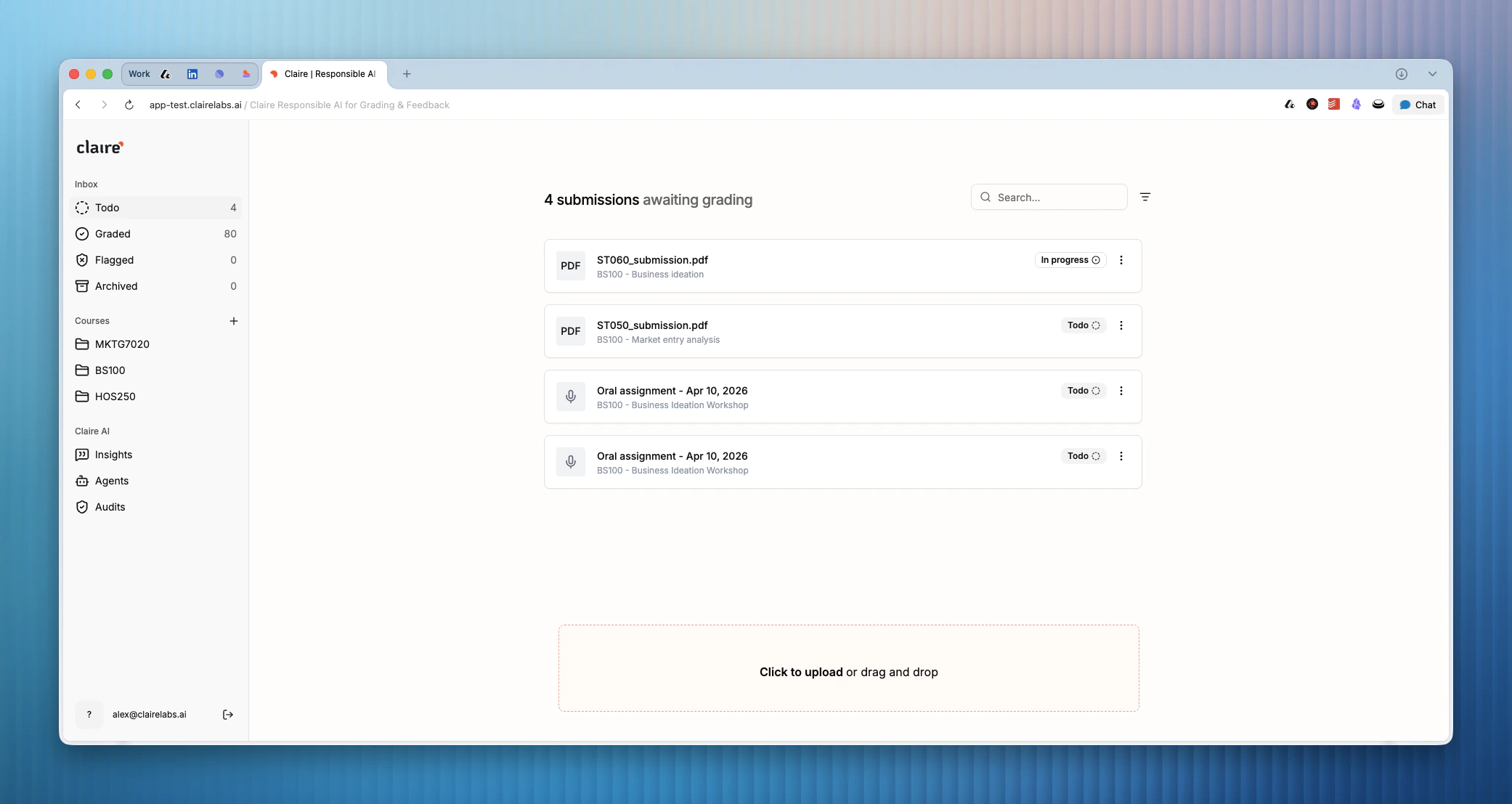
You will only see student submissions that do not have AI feedback enabled. Submissions that receive AI instant feedback are handled automatically and will not appear in your inbox.
Submission statuses
Submissions from the Student Portal that are due for review will automatically appear in your Inbox. You can open and view a submission by clicking on the respective submission item. This will open the submission (written work, transcript, or both) in the Reader.- Todo
- Graded
- Flagged
- Archived
Todo submissions are waiting for your review. A submission enters this status as soon as you upload it or receive it via the portal. Work through your Todo list to keep grading on track.
You are also able to pull submissions into your inbox via the Insights engine. By querying and conversationally asking for specific submissions, they will appear in the Insights section in a table. There’s a button that says “Flag”, and once you flag a submission, it will show up in your inbox.
Upload submissions manually
To add submissions to your inbox, upload them directly from your device. Currently, we only accept PDF files. Claire extracts the student ID from each file name automatically, making batch uploads straightforward. Claire recognizes several common formats:
We also support automated submission syncing by integrating directly with LMS providers via LTI. For more information, please see the LTI support and LMS integration page.
Looking for more details?
- To learn how to manually review student submissions, explore the Reading view.