

Annotation workflow
1
Navigate between Blocks
Use the ↑ and ↓ arrow keys to move between Blocks. The Block you’re currently focused on is indicated by a on the left side of the document.
2
Highlight Blocks
Apply a highlight to mark a Block as a strength, weakness, or neutral observation:
3
Add notes
Attach a note (press n) to any Block to record your observations: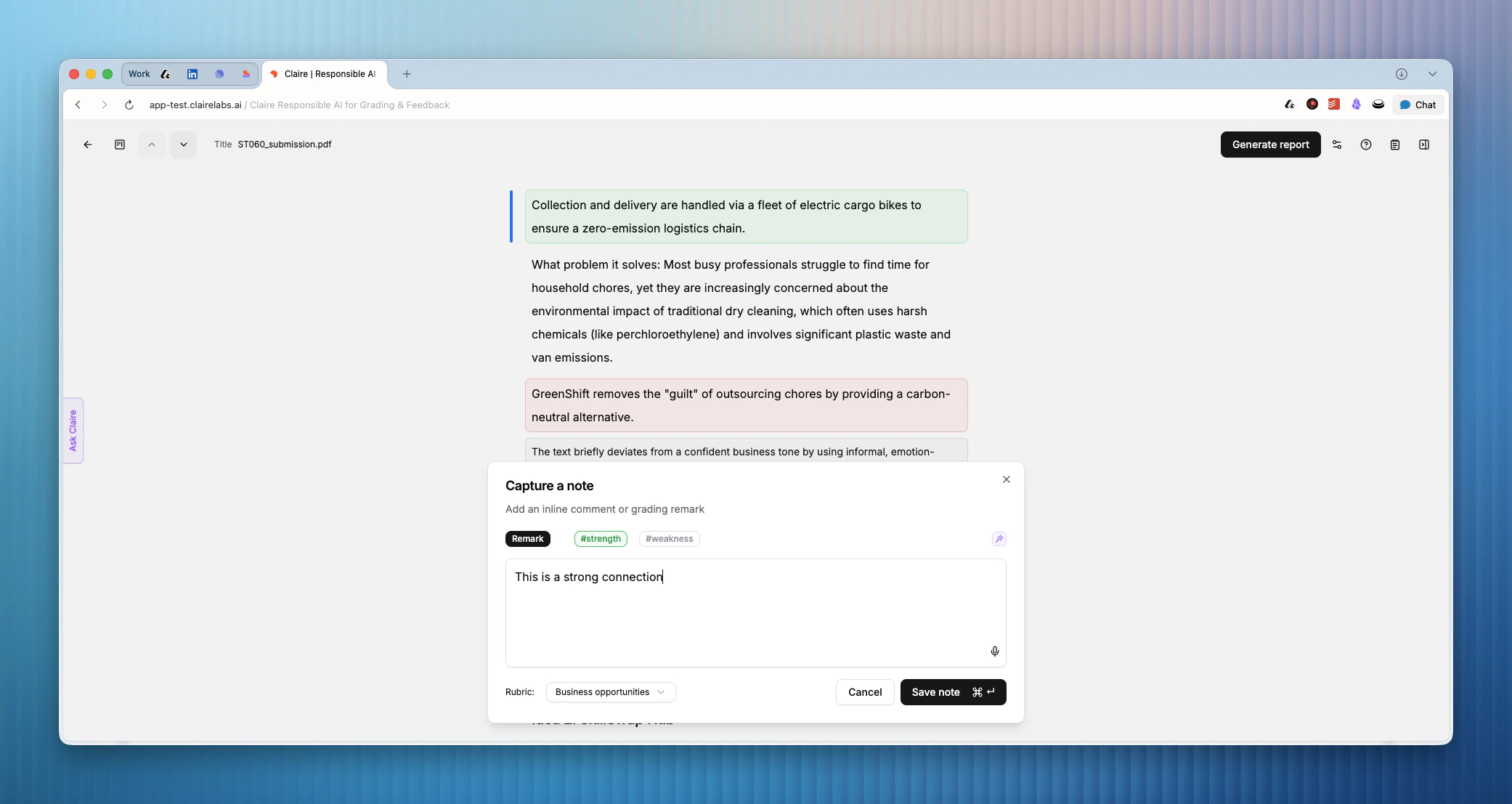
- Comments: Appear only in the feedback report — useful for narrative feedback you want to share with the student.
- Grading remarks: Link a note directly to a rubric criterion. Grading remarks show up in both the grading view and the feedback report.
Comments
Comments
Comments are the default note type in Claire. Every note you create starts as a Comment. They are designed for feedback that falls outside the scope of your grading rubric — observations about writing style, formatting preferences, or any other contextual remark that does not map to a specific criterion.How they appearComments display inline, directly below the Block you are focused on. They are visible to the student in the final feedback report.What they do NOT doComments are not grading-relevant. Claire does not include them when mapping your notes against the rubric or calculating an indicative score.When to use themUse Comments when you want to share an observation with your student that your rubric does not cover. For example, if writing style is not part of the rubric but you still want to mention it, a Comment is the right choice.
Grading remarks
Grading remarks
Grading Remarks are notes that are directly tied to a rubric criterion. Unlike Comments, they carry a sentiment — either Strength or Weakness — which Claire uses when generating your grading report and indicative scores.What they doWhen you generate a report, Claire maps all your Grading Remarks against your rubric criteria to check that your final grade aligns with the feedback you have written. All AI suggestions Claire creates are Grading Remarks linked to a rubric criterion.When to use themUse Grading Remarks for any observation that is directly supported by your grading rubric. If a criterion covers critical analysis and you notice a student making a strong argument, that is a Grading Remark (Strength).How to create one
- Add a note to a Block by pressing n.
- In the bottom-left corner of the note dialog, open the criterion dropdown and select the relevant rubric criterion.
- Set the sentiment to Strength or Weakness.
4
Review and act on AI suggestions
Claire reads your instructions and grading rubric, then analyzes each student submission to identify potential strengths and weaknesses. These AI suggestions appear inline as you read through a document, as well as at the end of the document or each section if you have split the assignment into exercises or groups.A green or red bar on top of the Focus Bar indicates that a suggestion is present for the Block you’re currently focused on.
Alternatively, switch to the Rubric view to review all suggestions organized by criterion.Click View Blocks below any suggestion to open the References panel, which shows all the source Blocks that suggestion is based on. Click any Block in the panel to jump to it in reading mode.
Only suggestions you explicitly approve become part of your grading record. When you approve a suggestion, it is treated as your own grading remark — not as an automated AI assessment. Claire never grades for you; it surfaces insights to inform your decisions.
Keyboard shortcuts
Looking for more details?
- To learn how to interact with the document conversationally, see Ask Claire.
- For a structured, Kanban-style perspective of a submission, see Rubric view.
- To see all your notes and source Block references, explore the Reference panel.