

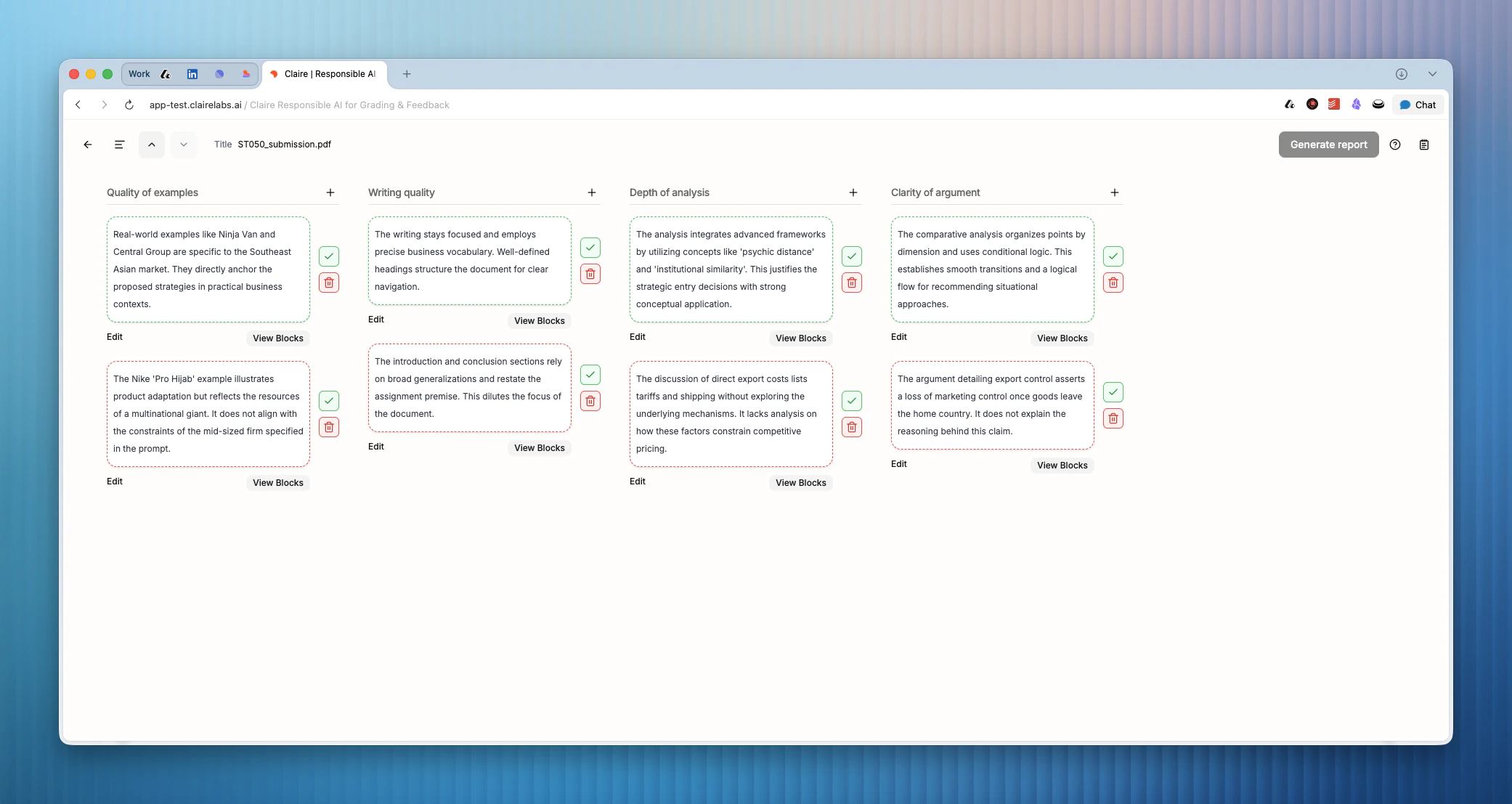
Using Rubric view
1
Switch to Rubric view
Click the view icon in the top navigation bar to switch from Reading mode to Rubric view. Click the Reading mode icon to return at any time.
2
Add grading remarks
In Rubric view, you can add grading remarks directly to a rubric criterion via their respective column. Remarks added here appear in both the grading part and the student feedback draft.
3
Approve or dismiss AI suggestions
Claire’s suggestions are organized into columns under their relevant rubric criterion. Review each one and click the icon button to approve, or the icon to dismiss. Approved suggestions become part of your grading remarks.
4
View source Blocks
Click View Blocks below any AI suggestion to open the References panel. The panel lists every Block the suggestion is based on. Click any Block in the list to view it in its original context in Reading mode.
Looking for more details?
- To trace a suggestion back to its original context, see Reference panel.
- To generate a grading and feedback report from your notes, see Review submissions.