Report structure
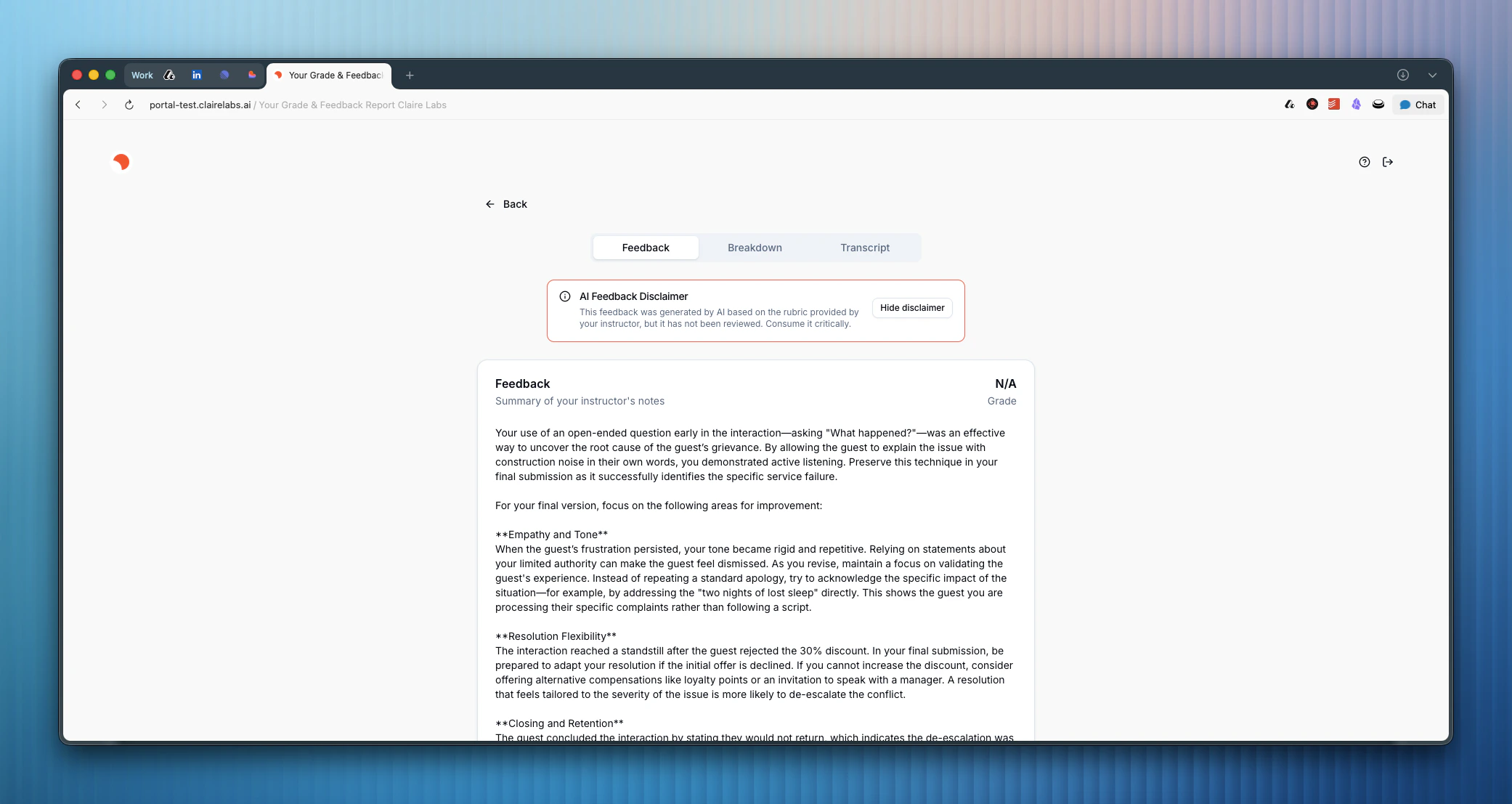
Student feedback reports are fully customizable. When you publish an assessment, you have an option under the Portal tab to customize the feedback report and decide which of the following components you want to show to the student. You can do this on an assessment level, so each assessment can have a different feedback report configuration. Depending on your settings, the feedback report can contain the following sections:- Written feedback — The personalized written feedback you reviewed and published, based on Claire’s initial draft. This is the main narrative feedback your student reads.
- Rubric breakdown — An AI-generated summary of your grading remarks, organized by rubric criterion. For each criterion, Claire writes a short summary that acknowledges strengths and areas for improvement based exclusively on your notes.
- Reading suggestions — AI-generated reading recommendations. Claire identifies the most critical skill the student needs to improve, runs a targeted search, and suggests 2–3 free, credible, and highly relevant resources.
- Raw annotations — Your in-line comments and grading remarks, as well as any AI suggestions you approved. Students see their written work with these annotations in line, similar to what you see in the reading mode. Note that your raw comments are shared exactly as written; Claire does not use AI to polish them.
- Transcript — For oral or hybrid assessments, the report includes the transcript of the conversation the student had with the agent.
Every student report also includes an AI hint section that discloses Claire’s involvement in drafting the feedback. This is part of Claire’s commitment to AI transparency and helps students understand how their feedback was produced.
Sharing with students
There are two primary ways to share the feedback report with your students after you click Publish feedback:- Student portal (Recommended)
Make the report visible directly in the student portal. On the Student Portal tab of your course page:- In Review: Use the Share grades in portal toggle. Turn it off to stage feedback so you can release all grades simultaneously. Turn it on if you want published feedback to go live immediately.
- Completed: Moving the assessment to the “Completed” column makes all published feedback and grades visible to students in the portal.
- Download as PDF
You can download the published feedback report as a PDF from the report page and share it manually through your preferred communication channel (Moodle, Canvas, email, etc.).
Looking for more details?
- To learn how to evaluate a submission and generate the feedback report, see Review submissions.
- To identify patterns and trends across all students in a course, see Course reporting.