

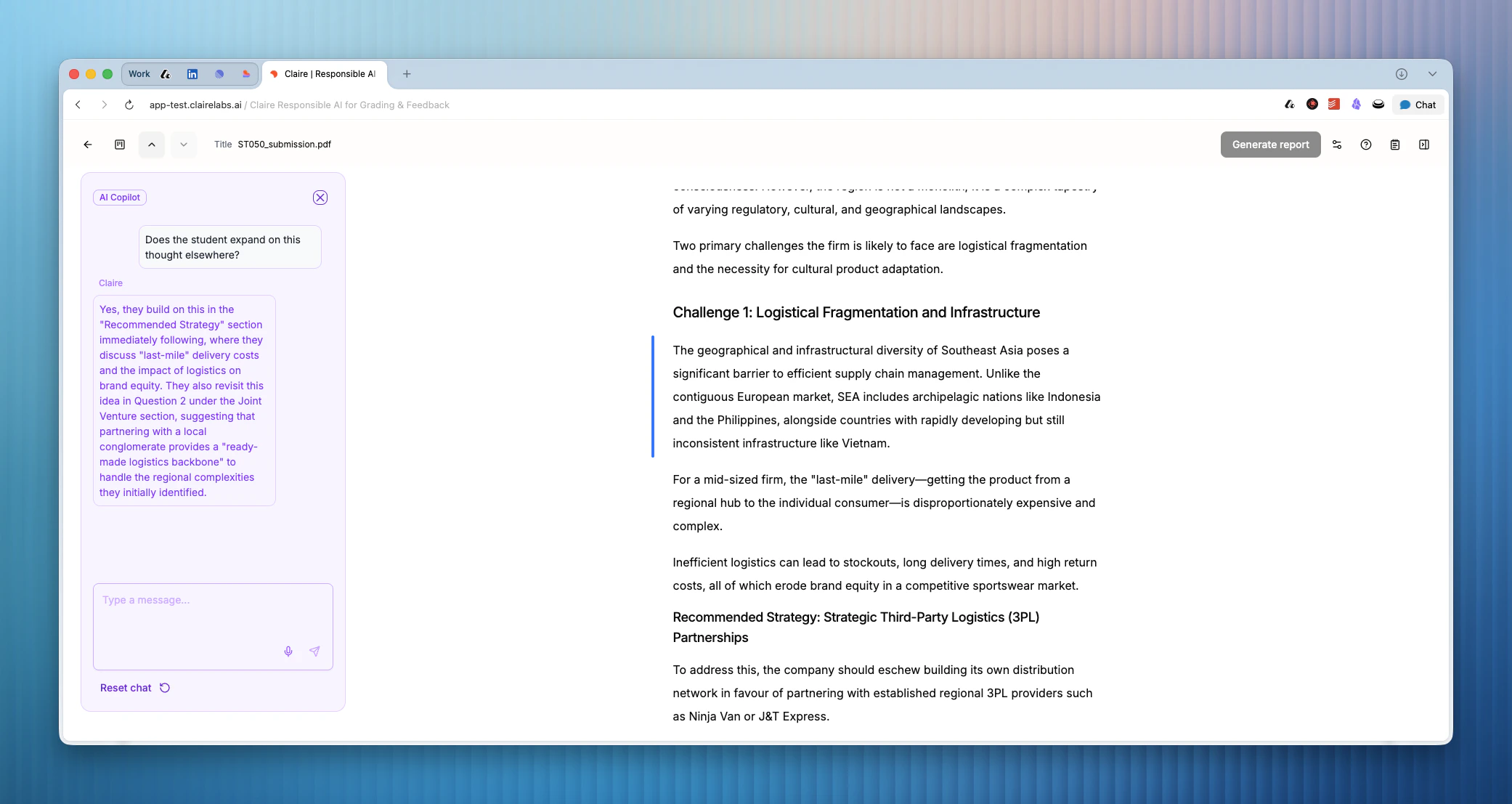
When to use Ask Claire
- You are about to add an annotation — for example, noting that an argument lacks depth — but want to check whether the student addressed it elsewhere in the submission first.
- You remember reading an interesting point in an earlier section but can’t locate it or recall it accurately.
- You are unsure whether you have interpreted a student’s intentions correctly and want to verify before grading.
Opening and using Ask Claire
1
Open the chat panel
Click the Ask Claire button on the left side of the screen, or press [ on your keyboard. The chat panel opens on the left side of the screen.
2
Ask your question
Type your question naturally. Because Claire knows which Block you are currently focused on, you do not need to add extra context. For example: “Is this mentioned elsewhere?” or “What does the student say about methodology in the introduction?”
Claire is contextually aware. It knows which Block you are focused on when you send a message, so you can ask direct questions without restating where you are in the document.
3
Close the panel
Press [ again to hide the chat panel and return to your full annotation view.
Keyboard shortcuts
Looking for more details?
- To learn how to add highlights and notes to a submission, see Annotate.
- If you want to keep private notes without them appearing in student feedback, check out the Scratchpad.