

How to build AI agents
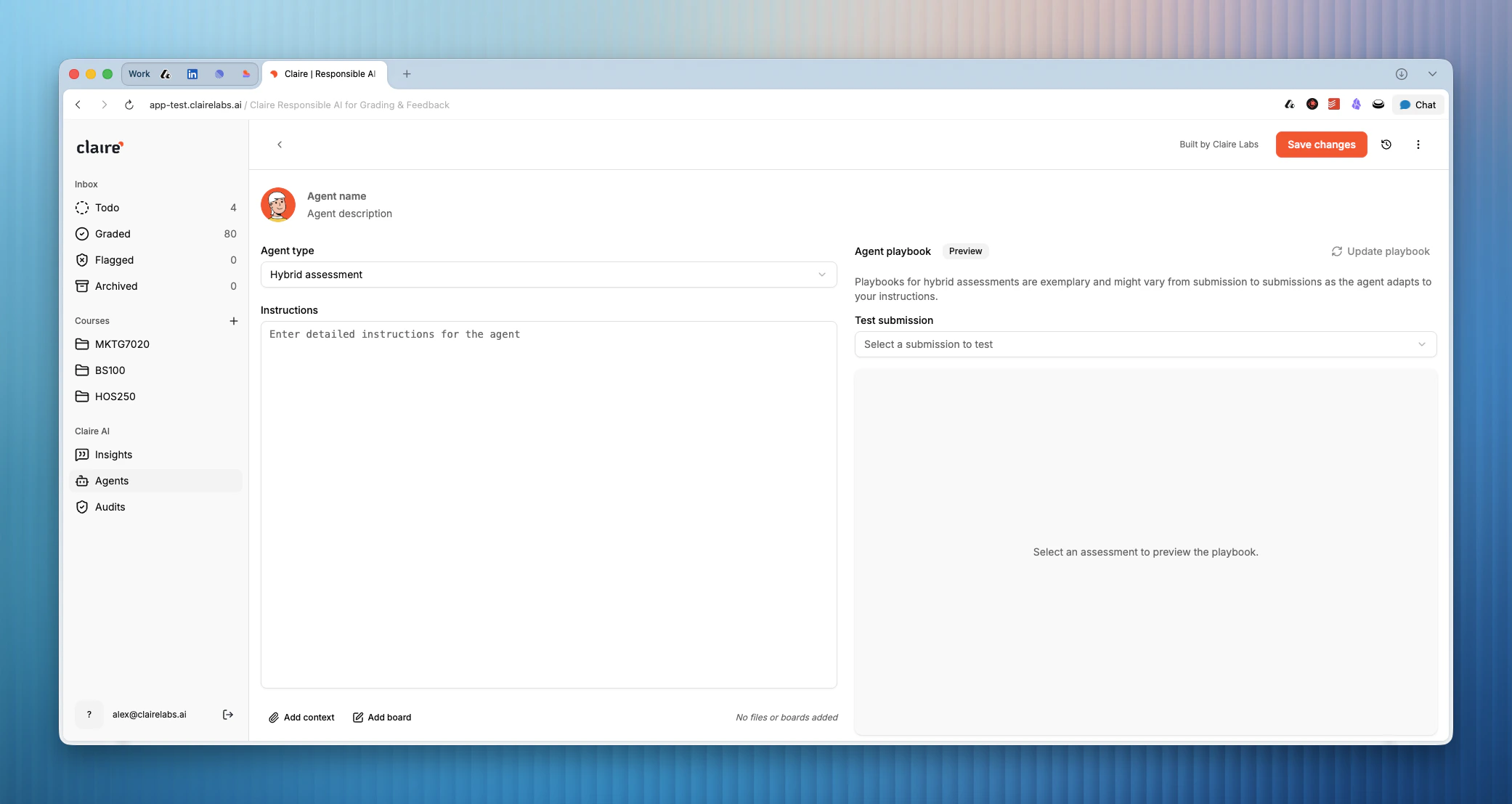
Building an agent is straightforward and only requires a few lines of text. Our platform translates your instructions into an exhaustive playbook that you can review before sharing the agent with students.1
Go to Agents
Head to the Agents section on the platform. Here, you can view existing agents or create new ones.
2
Create a new agent
- Click Create to start setting up a new agent.
- Give the agent a name and a short description (for internal organization).
- Decide whether you’d like to use your agent in an Oral (agent-led interview) or Hybrid (written submission followed by an interview) assessment.
- Add instructions that guide the agent and explain its role and objective.
3
Add context tools (Optional)
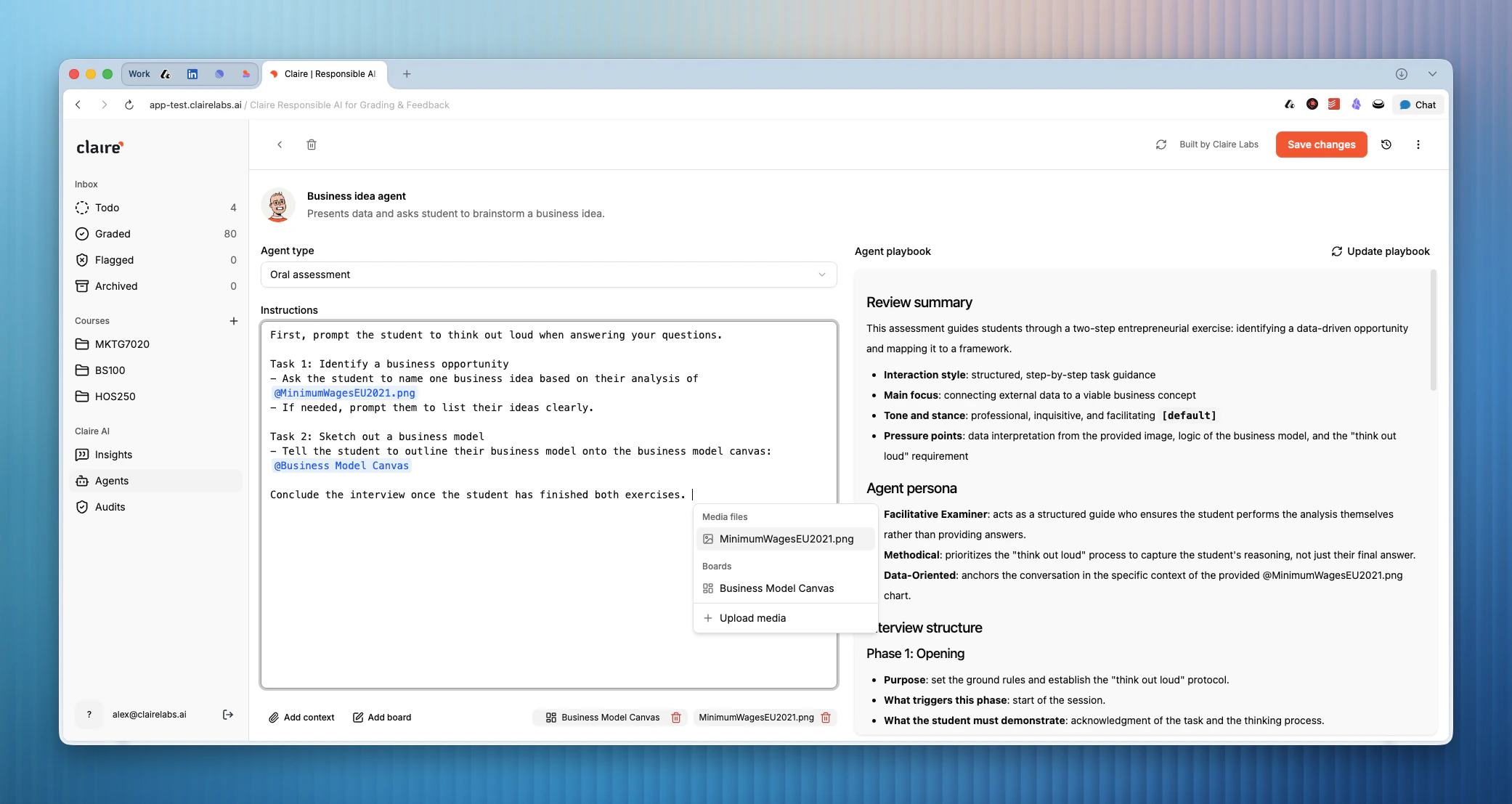
Agents are highly capable and can call tools during the interview. Click Add context to attach media files or Add board to add a whiteboard (empty or with a drawn template). You can then mention the tools in your instructions by typing @ and selecting the item.
4
Update playbook
Click Update playbook to create detailed instructions that will be shared with the agent. This gives the agent detailed instructions on how to behave and conduct the interview, and makes it easy for you to review the interview script and guardrails.
5
Save changes
Click Save changes to save your agent.
Example instructions
Here’s an example of an agent used for a business ideation assignment. It consists of only a few lines of instructions:Agent context and tools
Agents are extremely capable and can call tools during the interview with a student. Tools enable you to bring different media (images, lecture slides, etc.) or an interactive whiteboard into the conversation, requiring the student to demonstrate cognitive skills in real time. To add tools to your agent:- Click Add context to attach media files, or Add board to add a whiteboard (empty or with a drawn template).
- Once added, you can simply mention the tool in the agent’s instructions by typing @ and selecting the item.
Keyboard shortcuts
Looking for more details?
- To create assessments that leverage your new AI agent, see Assessments.
- To see what an AI agent interview looks like from the student’s perspective, see Student portal.