

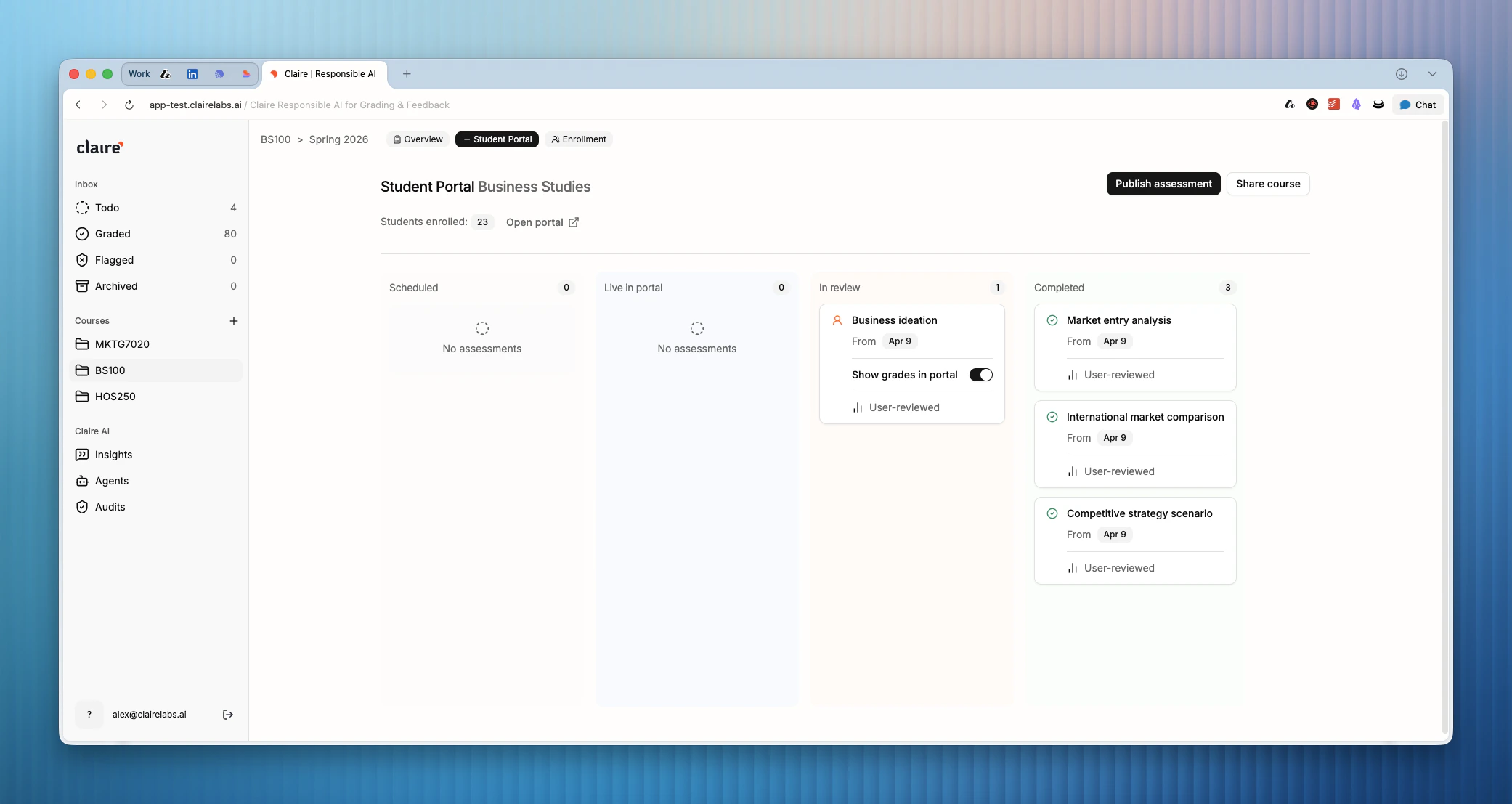
Managing the portal
You can manage your published assessments in a simple Kanban view, accessible via the Student Portal tab at the top of your course page. The Kanban view shows the status of each of your assessments. You can manually drag and drop assessments between the columns to change their state and visibility in the student portal:- Scheduled: The assessment is not yet visible to students in the portal, but will go live on a defined start date in the near future.
- Live in portal: The assessment is live and can be taken by your students.
- In review: The assessment is no longer available to students and is awaiting your review (not applicable to assessments with AI feedback enabled). Assessments are still visible to students on the portal but labeled as “awaiting feedback”. In this column, you can use the Share grades in portal toggle switch. When turned on, published feedback and grades will be live immediately in the student portal. When turned off, grades and feedback are staged, allowing you to release all feedback at the same time to avoid some students receiving their results early while others are still waiting.
- Completed: The assessment is completed. Feedback and grades are now available to students via the student portal.
Accessing the portal
Click the Share course button in the page header on the right-hand side of the Student Portal tab to access a QR code and URL that directs you or your students to your course page.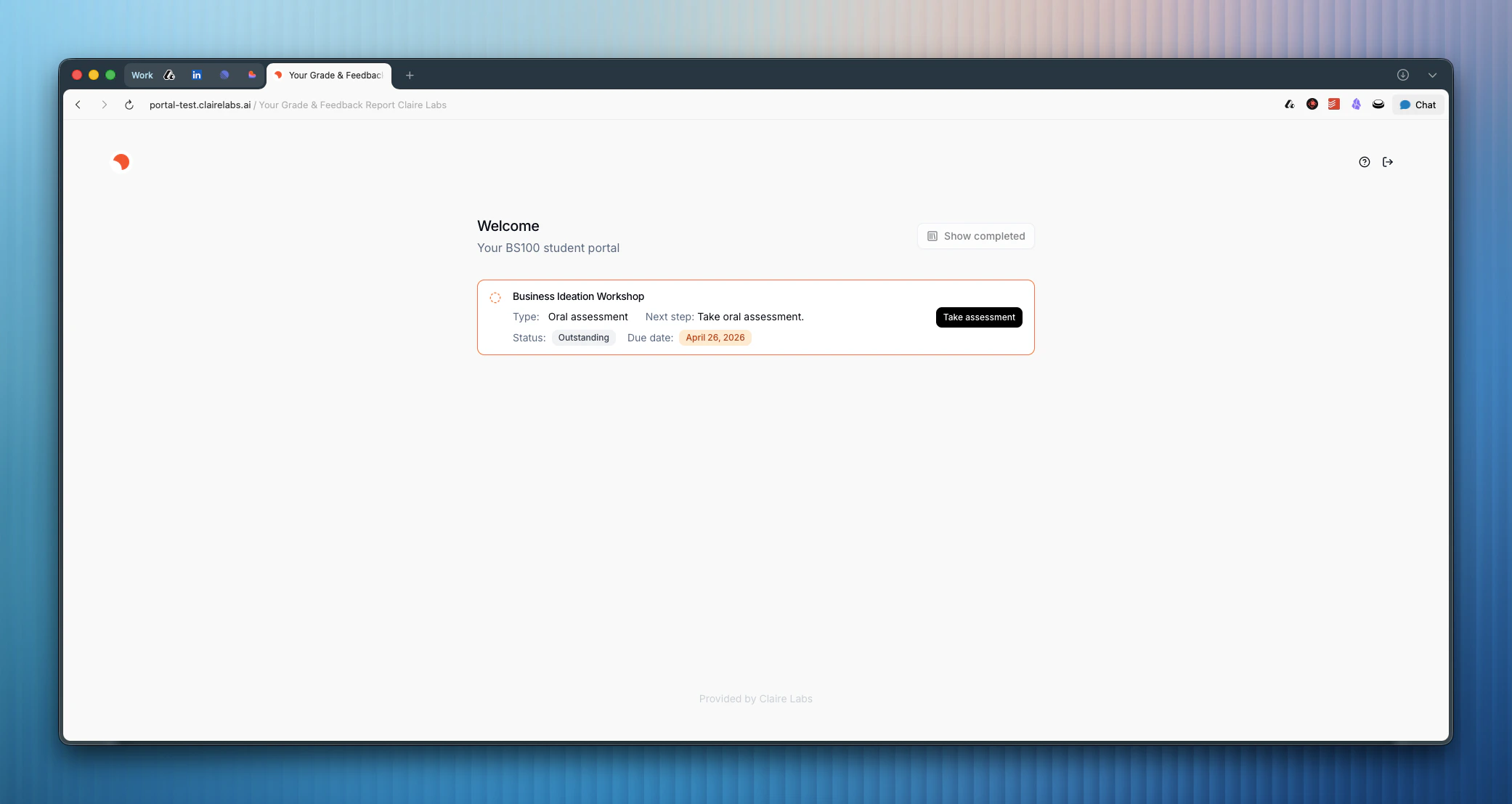
Student login experience
Students can log in to their account using their email address and an OTP (One-Time Password) code for enhanced security. After verification, they are automatically directed to your course page. On the course page, students see:- Their outstanding assessments.
- Completed assessments with available feedback.
Looking for more details?
- To create and manage your assessments, see Assessments.
- To see what the student’s feedback report looks like, see Feedback reports.